Mailchimp Tip – How to add a website menu to your emails
Published 22 September 2023
Pro-Tip: 2 ways to add a website menu to your emails and newsletters in Mailchimp
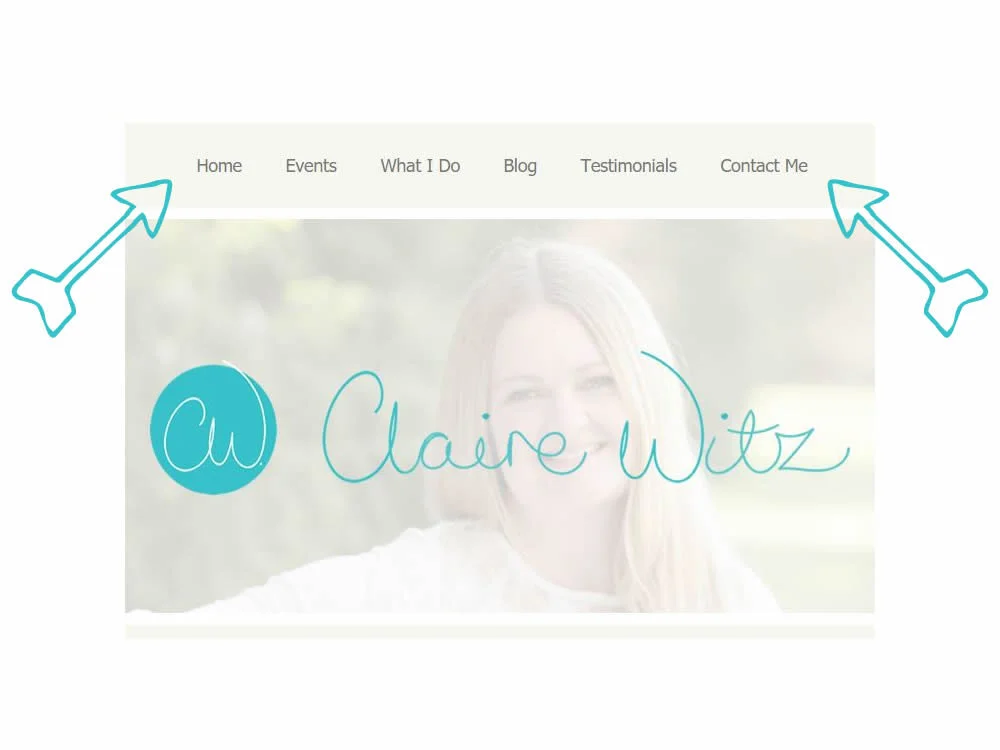
You know when you receive emails from big companies that look like a web-page with their website menu on the top? Not only do they look good, but they’re also a brilliant way to:
- showcase what you do in a glance
- be consistent
- drive people to your website.
They’re also often created by techy programmers, whose services are sadly out of reach for small businesses with mini budgets like us.
BUT, there are a couple of “cheat” ways that we can add our website menu to our emails without programming skills.
The best approach depends on whether you’re using Mailchimp’s Classic Builder or New Builder, as they display differently to the recipient.
Method 1 for Mailchimp’s Classic Builder
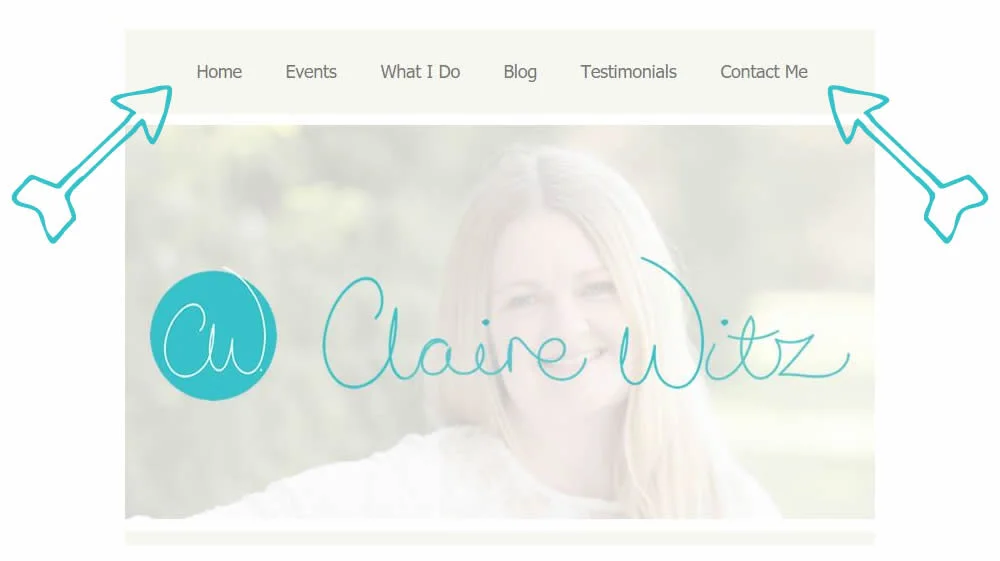
- Decide which 5 or so menu bar links you want to showcase on your email. Keep it short and sweet and ideally one word for each option, as it may be pushed down into more than one line on mobile phones.
- When you design your email content layout, drag a text block into the Header zone of your email (this is very important so the styling looks different to the body of your email.)
- Add each menu item, and link it to the specific place on your website. I usually add [space][space]”|”[space][space] in between each one to maintain separation
- Go to your overall style sheet for the email and style the header so that the text is the same colour as the background (which means the “|” don’t show, and the link colours to e.g. bold, black and NOT underlined. It’s
- Voila.
Method 2 for Mailchimp’s New Builder AND Classic Builder
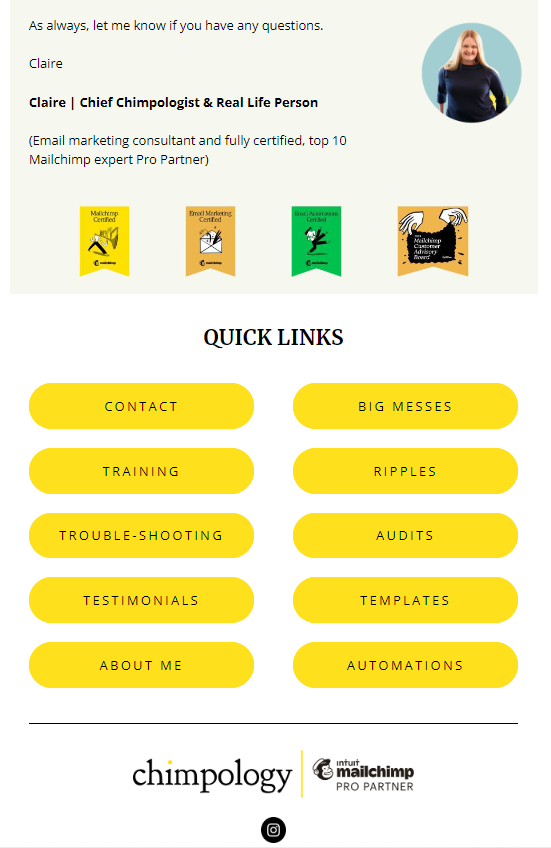
The reason I don’t use the version above in new builder is because most devices tend to turn the links into blue underlined, regardless of the styling you set, which can look pretty dreadful. Instead, I find buttons work really well as quick links further down the email like this:
Need help with Mailchimp?
I offer group hands-on workshops, one-to-one training or can just sort it out for you remotely if that’s your bag.
I also share tips by email, so be sure to sign up to receive emails from me (don’t worry, I promise not to bombard you!).
If you want to explore some options, get in touch. I offer a free, no-strings-attached-whatsoever 15 minute discovery phone call.