Mailchimp emails have changed – are you using the saved sections library yet?
Published 13 November 2026
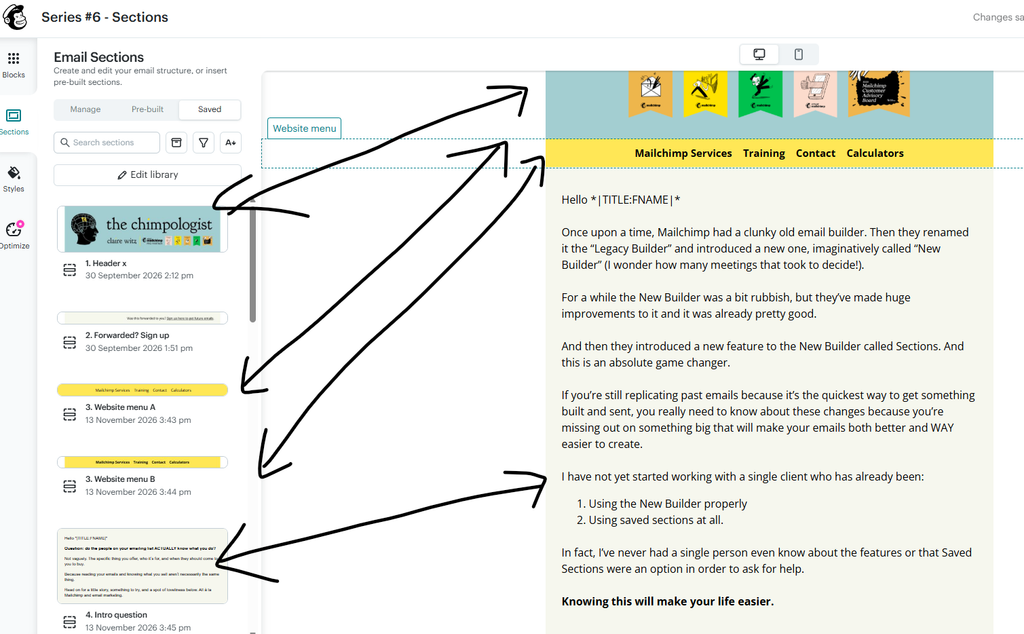
Once upon a time, Mailchimp had a clunky old email builder. Then they renamed it the “Legacy Builder” and introduced a new one, imaginatively called “New Builder” (I wonder how many meetings that took to decide!).
For a while the New Builder was a bit rubbish and I advised against using it, but Mailchimp made huge improvements to it and it’s good pretty good:
- Easier to use
- Much more versatile designs and functions.
And then they introduced a new feature to the New Builder called Sections. And within Sections they tucked away something brilliant called Saved Sections.
And this feature is an absolute game changer.
If you’re still replicating past emails because it’s the quickest way to get something built and sent, you really need to know about these changes because you’re missing out on something big that will make your emails both better and WAY easier to create.
Even if you have already taken the plunge and moved to the New Builder, I have not yet started working with a single client who has already been:
- Using the New Builder properly
- Using saved sections at all.
In fact, I’ve never had a single person even know about the features or that Saved Sections were an option in order to ask for help.
Knowing this will make your life easier. Trust me.
How to work out if you’re using the Legacy Builder or New Builder
When you are building your email campaign in Mailchimp, on which side of the screen can you see the new content blocks to drag into your email?
RHS – you’re using the Legacy Builder
LHS – you’re using the New Builder


What’s the difference between Blocks, Sections and Saved Sections in the New Builder?
Blocks
These are individual building blocks that you can drag into your email e.g. an image, a text box, a button, a divider line etc. Each block can be moved around individual but they are not connected to one another.
Sections
These are areas of your email and contain groups of blocks. Standard sections are the Header, Body and Footer. Different styling rules can apply to each section e.g. background colours/images, link colours etc.
When you are only using the default Header / Body / Footer sections, it doesn’t feel like they add much value. BUT…
If you create extra custom sections, suddenly a whole bunch of possibilities opens up, including:
- Dragging 1 section full of blocks into a different position instead of dragging a load of individual blocks (anyone who has wanted to reorder an email knows what a pain that can be)
- SAVING those sections into a library that is then available across every single email you create.
- Choosing visibility – e.g. you have one single email with a series of opening intros that are almost the same, but differ slightly depending on the segment a contact is in. Each one has custom Visibility set. I’ll talk more about Visibility in an email soon, so make sure you’re subscribed.
Saved Sections
Once you have saved sections, you have a flexible library of predesigned sections that you and other team members can drag into any email time and again to a) make it much quicker and easier to build them, and b) keep the design and structure consistent.
- Want to add an event? Simply drag your polished and pre-designed saved event section containing an image, a heading, a paragraph and a button straight into your email. The layout and styling are already sorted.
- Do you use different footers depending on the circumstances or segment you’re sending to? Save them all, then just drag the version in you need at any given time.
- Do you sometimes need to add an alert bar at the top of some emails? Just drag it from your saved section.
- Have you created a section in this email that you know will be useful to include in others? Just add it to your Saved Sections library and it will be there forever more.
Are you struggling with your email styling and fonts?
Now this is a topic in itself, but if you’re finding it difficult to keep your email design consistent, or it looks fine on desktop but strange on mobiles, that’s because you don’t have the underlying style sheet set up. I VERY rarely see it done properly, even if you’ve had your templates designed by a “professional” graphic designer.
When the style sheet is set up properly and you’ve been shown how to use it, your blocks are automatically consistent, fonts are correct, buttons looks the same etc etc.
All that should be built into your template, alongside the saved sections I’ve talked about here. But they very rarely are.
If you want to make your Mailchimp emails both easier for you to create, AND look brilliant, we probably need a chat.